If you want to have a better computer experience while you are viewing websites and using your computer these two simple and easy steps will go a long ways towards helping you achieve that goal. I suggest you do these on a weekly basis. It should take 10 minutes or less depending on how fast your computer is.
Step 1: Run CCleaner (Crap Cleaner)
This is one of my favorite programs because it solves so many annoying issues that can happen when your computer becomes cluttered up with cookies and temporary files from visiting various websites.
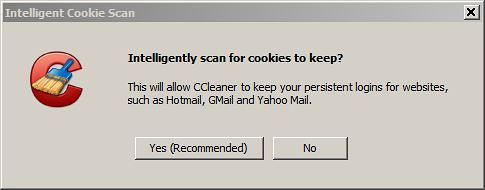
When you first download CCleaner and install it will ask you if you want to do an intelligent scan for cookies as shown in the picture below. Choose Yes and when it has finished it will take you to the main screen.
On a weekly basis simply open CCleaner up and click on the button in the lower right corner that says Run Cleaner.
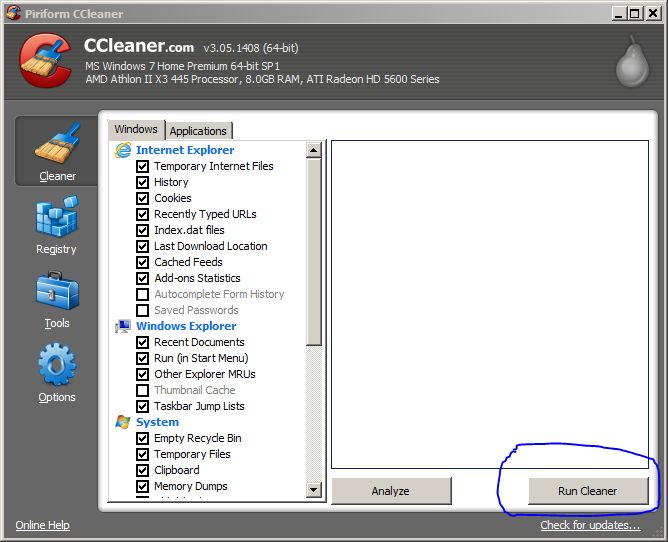
That’s it…it will scan your computer and remove a bunch of junk that could be causing your computer or browsers to run slow. The first time you do the scan it will take a little while but repeat scans usually are completed in less than 1 minute.
You can watch a video tutorial on CCleaner if you’d like to learn more about it.
Step 2: Run a Quick Scan with Malwarebytes
Malwarebytes is a great Anti-Malware scanner that can be used as an On Demand Scanner when you download and install the Free Version. You can use the Free version regardless of what AntiVirus you are currently using because it is On Demand, meaning it won’t do anything unless you tell it to. So, since it’s not providing Active AntiVirus Protection you don’t have to worry about it conflicting with your AntiVirus product. If you want to make sure you are running a good security setup please be sure to visit my Free Computer Protection page to see how I use a layered defense to protect my computers.
To do your weekly scan with Malwarebytes simply open the program up and if it prompts you to update it go ahead and do it before starting the scan.
When it’s finished it will either tell you it’s found infected objects or a scan log will appear telling you nothing was found. If it finds infected objects just follow the instructions to remove them. You should also consider doing a Full Scan if the Quick Scan finds anything.
You can watch a Video about Malwarebytes if you’d like to learn more about it.